
How to Convert Images to WebP on Mac (Batch Conversion)
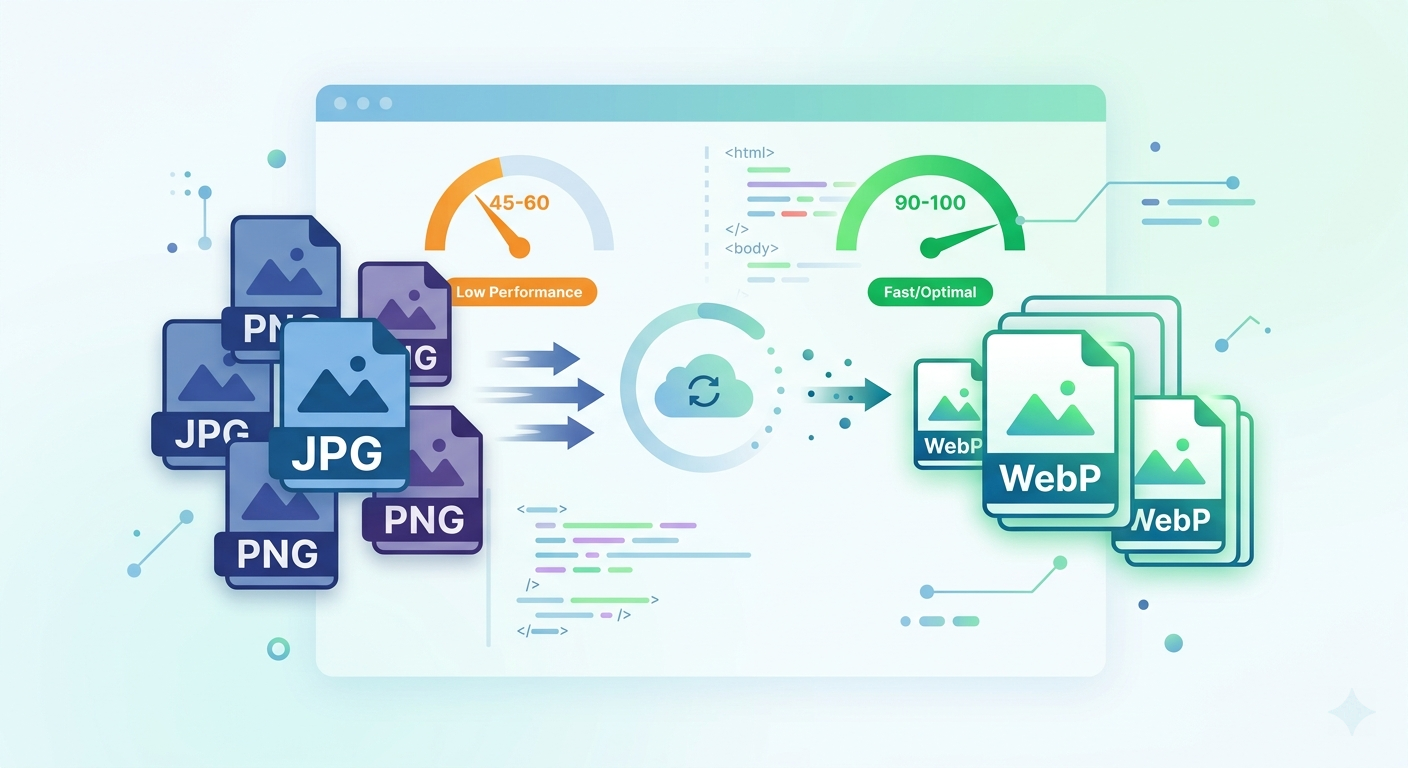
You run your website through PageSpeed Insights. It comes back with the same suggestion it's been giving you for years: "Serve images in next-gen formats."
You know you should be using WebP. Your images are still JPG and PNG because converting them has always been annoying. Let's finally fix that.
Why WebP? The Numbers.
WebP isn't just a Google pet project anymore — it's the practical standard for web images:
- WebP vs JPG: 25-35% smaller at equivalent visual quality.
- WebP vs PNG: 26% smaller for lossless. Up to 3x smaller for lossy.
- Browser support: 97%+ globally. Every modern browser has supported it since at least 2020. The "but Safari doesn't support it" excuse ended with Safari 16 in 2022.
Google uses image format and size as a ranking signal through Core Web Vitals (LCP specifically). Switching to WebP is one of the easiest SEO wins available.
Option 1: cwebp Command Line Tool
Google provides a dedicated command-line tool:
brew install webp
Single file:
cwebp -q 80 photo.jpg -o photo.webp
Batch (bash loop):
for f in *.jpg; do cwebp -q 80 "$f" -o "${f%.jpg}.webp"; done
This works great if you're comfortable with Terminal. The quality is excellent — Google made both the format and the conversion tool. The downside: no preview. You're picking a quality number and hoping for the best until you open the output file.
Option 2: Use an Image Editor
- Photoshop: File → Export As → WebP (added in Photoshop 23.2).
- GIMP: File → Export As → change extension to
.webp.
Both work fine for one-off conversions. Neither is practical for "convert my entire blog's 200 images."
Option 3: Batch Convert with ShrinkPad
For bulk conversions with visual feedback, a dedicated tool makes the difference.
Blog Migration Test
- cwebp bash loop: 28 seconds, no preview, some files over-compressed.
- ShrinkPad: 14 seconds, with quality preview. Total output: 89MB (74% reduction).
Here's the workflow:
- Select your images: Grab your website's entire
images/folder. JPGs, PNGs, or a mix — ShrinkPad handles both. - Choose WebP as output: One click to set the target format.
- Adjust quality: 80% is the sweet spot for web images. The live preview lets you spot any artifacts before committing.
- Convert: Multi-threaded processing. Your folder structure is preserved, so
images/blog/stays organized asimages/blog/.
ShrinkPad handles JPG→WebP and PNG→WebP differently under the hood (lossy vs lossless), so transparent PNGs keep their transparency automatically.

Stop uploading your files to the cloud.
Compress images and videos locally on your Mac. Fast, private, and no internet required.
WebP vs AVIF: Should You Go Even Further?
AVIF is the next evolution: roughly 20% smaller than WebP with better quality at low bitrates. Browser support is at ~93% globally — solid, but not quite universal yet.
Recommendation: Use WebP as your primary format today. If you want bleeding-edge performance, add AVIF as a progressive enhancement using the <picture> element:
<picture>
  <source srcset="photo.avif" type="image/avif">
  <source srcset="photo.webp" type="image/webp">
  <img src="photo.jpg" alt="Fallback">
</picture>
ShrinkPad supports both WebP and AVIF output, so you can generate both formats from the same source images in a single session.
Fastest SEO Win Available
Switching to WebP is the lowest-effort, highest-impact performance optimization for any website. Convert once, load faster forever.
For a complete guide covering format selection, resizing, and compression — not just WebP — see How to Optimize Images for Your Website on Mac.