
How to Compress Video for Discord & WhatsApp on Mac (Under the File Limit)
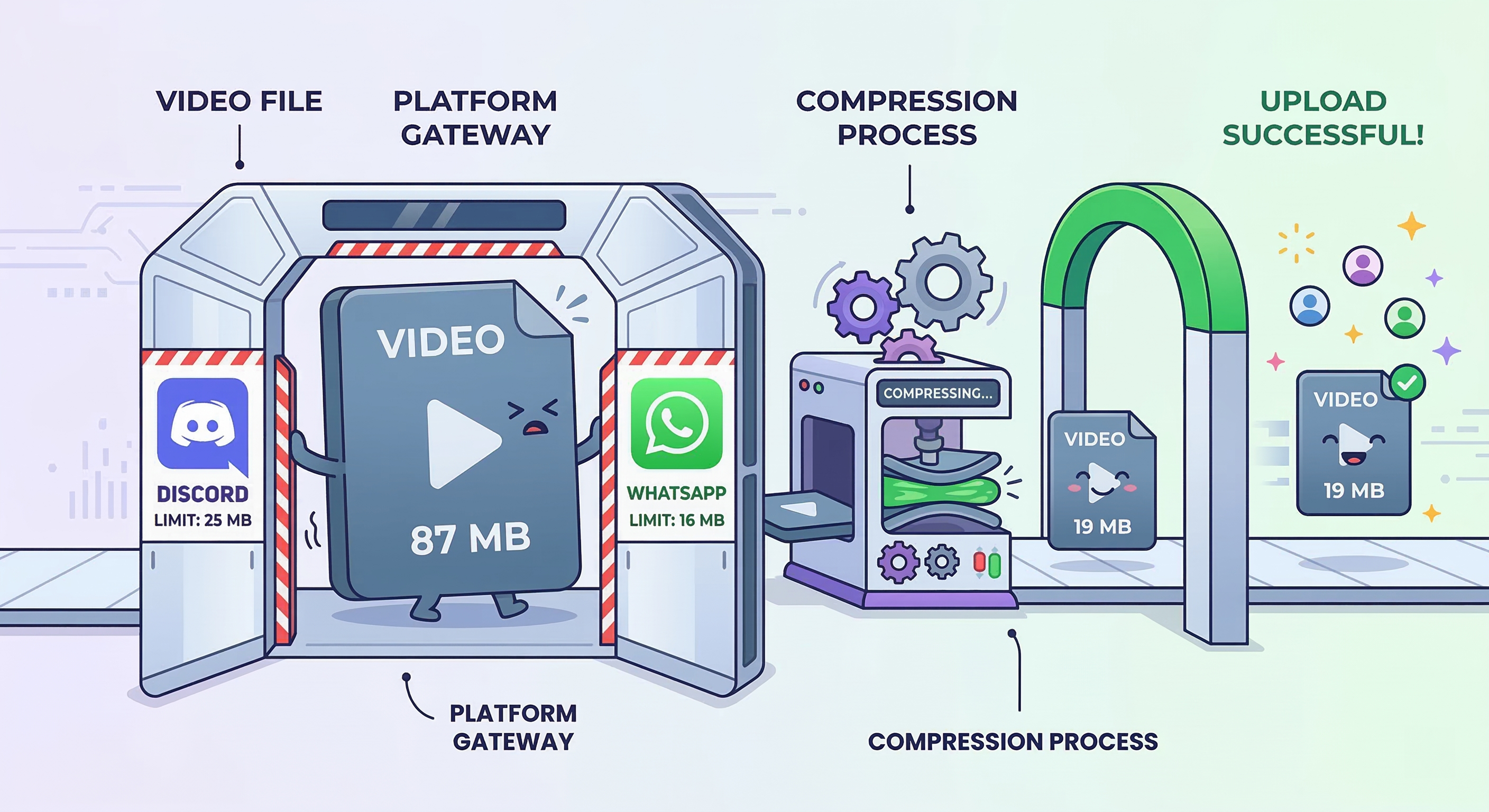
You captured the perfect clip. A clutch play, a hilarious moment, your cat doing something absurd. You try to send it on Discord. "Your files are too powerful."
A 30-second screen recording can easily be 50-100MB. Discord's free limit is 25MB. WhatsApp tops out at 16MB for video. The math never works. Here's how to fix it.
Platform File Limits (Quick Reference)
| Platform | Max Video Size | |----------|---------------| | Discord Free | 25MB | | Discord Nitro | 50MB | | Discord Nitro (Boost) | 500MB | | WhatsApp | 16MB | | Telegram | 2GB | | iMessage | ~100MB (auto-compresses above) | | Slack Free | 1GB (but upload is painfully slow) |
These limits shift occasionally, but the core problem stays the same: your clips are almost always bigger than the platform allows.
The Free Option: HandBrake
HandBrake is free, open-source, and genuinely powerful. You can open your video, set a target file size or quality level, and export.
The issue: HandBrake was designed for encoding movies and TV shows. The interface is packed with options — audio tracks, subtitle streams, filters, chapters — that you'll never need for a Discord clip. For someone who just wants "make this smaller," it's intimidating.
If you're willing to learn it, HandBrake is an excellent free tool. If you want something faster, keep reading.
The Quick Way: ShrinkPad
The key feature here is the real-time file size estimate. You know before compressing whether your video will fit under the platform limit.
Discord Challenge
- HandBrake: ~1 minute of fiddling with settings, then 30 sec encode.
- ShrinkPad: Drag, slide to ~65% quality, done in 12 seconds. Result: 19MB. Looks great.
Here's the workflow:
- Drop your clip onto ShrinkPad.
- Watch the file size estimate as you adjust the quality slider. Stop when it's under your target (25MB for Discord, 16MB for WhatsApp).
- Compress: Takes seconds for short clips.
- Send it: Drag the output file into Discord, WhatsApp, or wherever.
For batch use: if you're compressing a whole folder of clips for a highlight reel, just drop the folder. ShrinkPad processes them all at once.

Stop uploading your files to the cloud.
Compress images and videos locally on your Mac. Fast, private, and no internet required.
Tips for Smaller Videos That Still Look Good
Sometimes compression alone isn't enough for very strict limits. Here are additional tricks:
- Trim first: Cut out the boring setup before and after the good part. Shorter = smaller. Use QuickTime's Edit → Trim (Cmd+T) for quick cuts.
- Resolution matters: If it's going to be watched on a phone screen, 720p is plenty. Nobody's watching your Discord clip on a 4K monitor.
- Frame rate: 30fps vs 60fps. If it's not a fast-paced action clip, 30fps halves the data rate with barely any perceived difference.
- Audio: If it's a screen recording with no important audio, muting or reducing audio bitrate can shave off 10-15% of the file size.
Don't Let File Limits Win
Arbitrary upload caps shouldn't stop you from sharing moments. A quick compression step — literally 10 seconds — is all it takes.
Dealing with massive MOV files from your iPhone specifically? See How to Reduce MOV File Size on Mac. For a deeper dive on video quality settings, check out How to Compress Video on Mac Without Losing Quality.