
How to Convert HEIC to JPG on Mac (Batch Conversion, No Quality Loss)
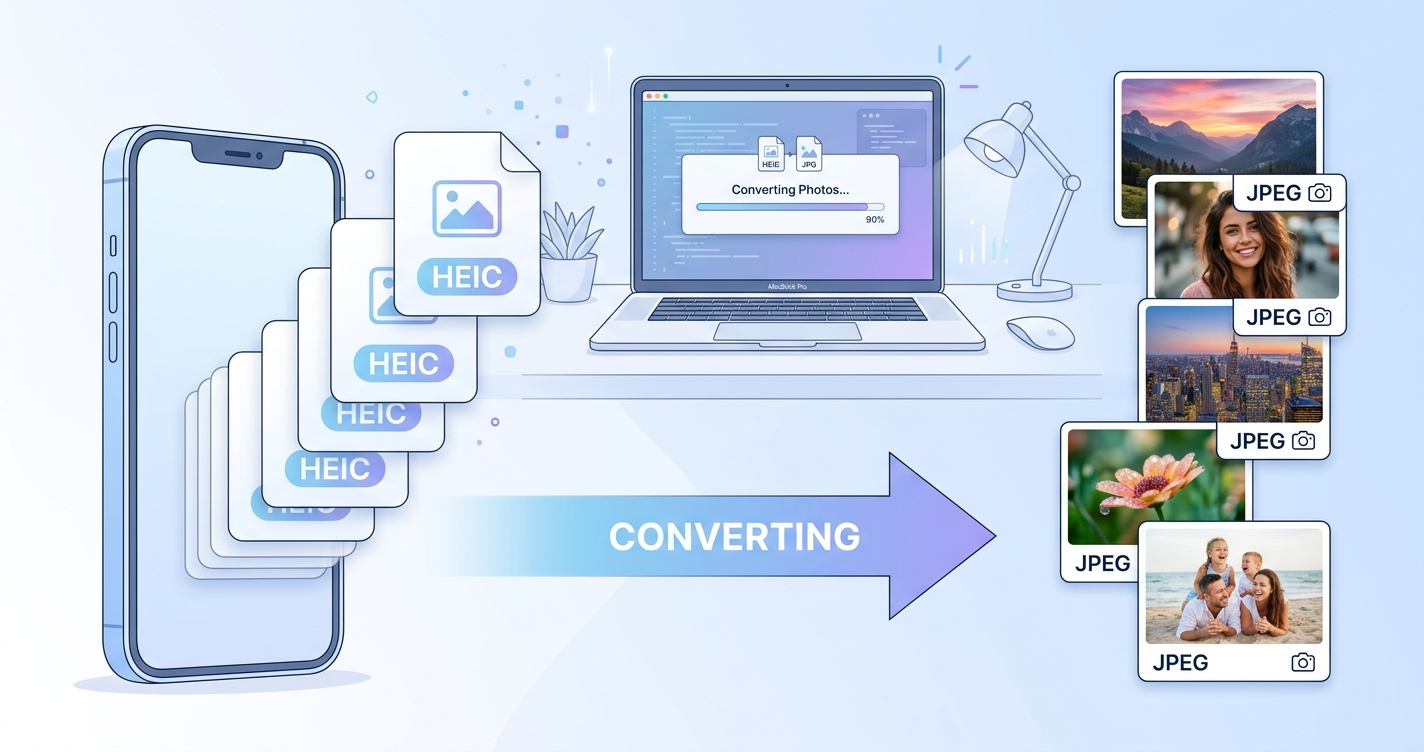
You just transferred 500 photos from your iPhone to your Mac. You try to upload them to a website, send them to a client, or open them in an older app... and nothing works. The culprit? HEIC.
Apple's High Efficiency Image Container (HEIC) format is great for saving space on your phone—but the rest of the world hasn't quite caught up yet. Most websites, Windows PCs, and even some Mac apps still can't handle it.
The solution? Convert them to good old JPG. But if you've got hundreds of photos, doing them one-by-one is a nightmare. Let's fix that.
What is HEIC and Why Does Apple Use It?
HEIC (sometimes called HEIF) is a modern image format that Apple adopted starting with iOS 11. Its main advantage is compression: a HEIC file is typically 40-50% smaller than a JPG of the same quality.
For your iPhone's limited storage, that's a win. For compatibility with literally everything else? Not so much.
Did You Know?
Option 1: The Built-in macOS Way (One at a Time)
macOS has native HEIC support, so you can do basic conversions without any extra software:
- Open the HEIC file in Preview.
- Go to File → Export.
- Choose JPEG from the Format dropdown.
- Click Save.
This works... if you have 5 photos. If you have 500? You'll be there all afternoon.
Option 2: The Automator Workflow (A Bit Clunky)
For batch conversions, you can set up an Automator Quick Action:
- Open Automator and create a new Quick Action.
- Set "Workflow receives current" to image files in Finder.
- Add the action: Change Type of Images → set to JPEG.
- Save the workflow with a name like "Convert to JPG".
Now you can right-click multiple HEIC files in Finder and run your action.
The downsides:
- No quality control (it uses a default compression level).
- No preview of results.
- Doesn't handle edge cases well (like Live Photos).
- Tends to overwrite originals if you're not careful.
Option 3: The Professional Way (ShrinkPad)
If you find yourself converting HEIC files regularly, you deserve a proper tool. We built ShrinkPad to handle exactly this workflow—with a few extra superpowers.
Speed Test
- Preview (one-by-one): ~25 minutes of clicking.
- Automator workflow: ~45 seconds, no quality control.
- ShrinkPad: 8 seconds, with quality slider and preview.
Here's the workflow:
- Drag & Drop: Select all your HEIC files (or an entire folder) and drop them onto ShrinkPad.
- Choose Output Format: Select JPG (or WebP, PNG—whatever you need).
- Adjust Quality: Use the slider to balance quality vs. file size. You'll see a live preview.
- Convert: Hit the button. Your converted files appear next to the originals (or wherever you choose).
No cloud uploads. No file limits. No waiting for servers.

Stop uploading your files to the cloud.
Compress images and videos locally on your Mac. Fast, private, and no internet required.
Keeping Your Metadata
One thing people often overlook: when you convert HEIC to JPG, you want to keep the EXIF metadata—the date taken, GPS location, camera settings, etc.
Some conversion tools strip this data out. ShrinkPad preserves it by default, so your photo library stays organized and searchable.
What About WebP?
If you're converting photos for the web, consider going to WebP instead of JPG. WebP offers:
- 25-35% smaller files than JPG at equivalent quality.
- Full support in all modern browsers (Chrome, Safari, Firefox, Edge).
- Transparency support (like PNG, but smaller).
ShrinkPad can convert HEIC → WebP in the same workflow. Just select WebP as your output format.
Wrapping Up
HEIC is a great format for storage efficiency, but it's a headache when you need compatibility. Whether you're sharing photos with clients, uploading to a website, or just backing up to a drive that doesn't support Apple's ecosystem—batch conversion to JPG solves the problem.
Skip the tedious one-by-one exports. Let your Mac do the heavy lifting.
Happy converting!