
How to Convert RAW Photos to JPG on Mac in Bulk
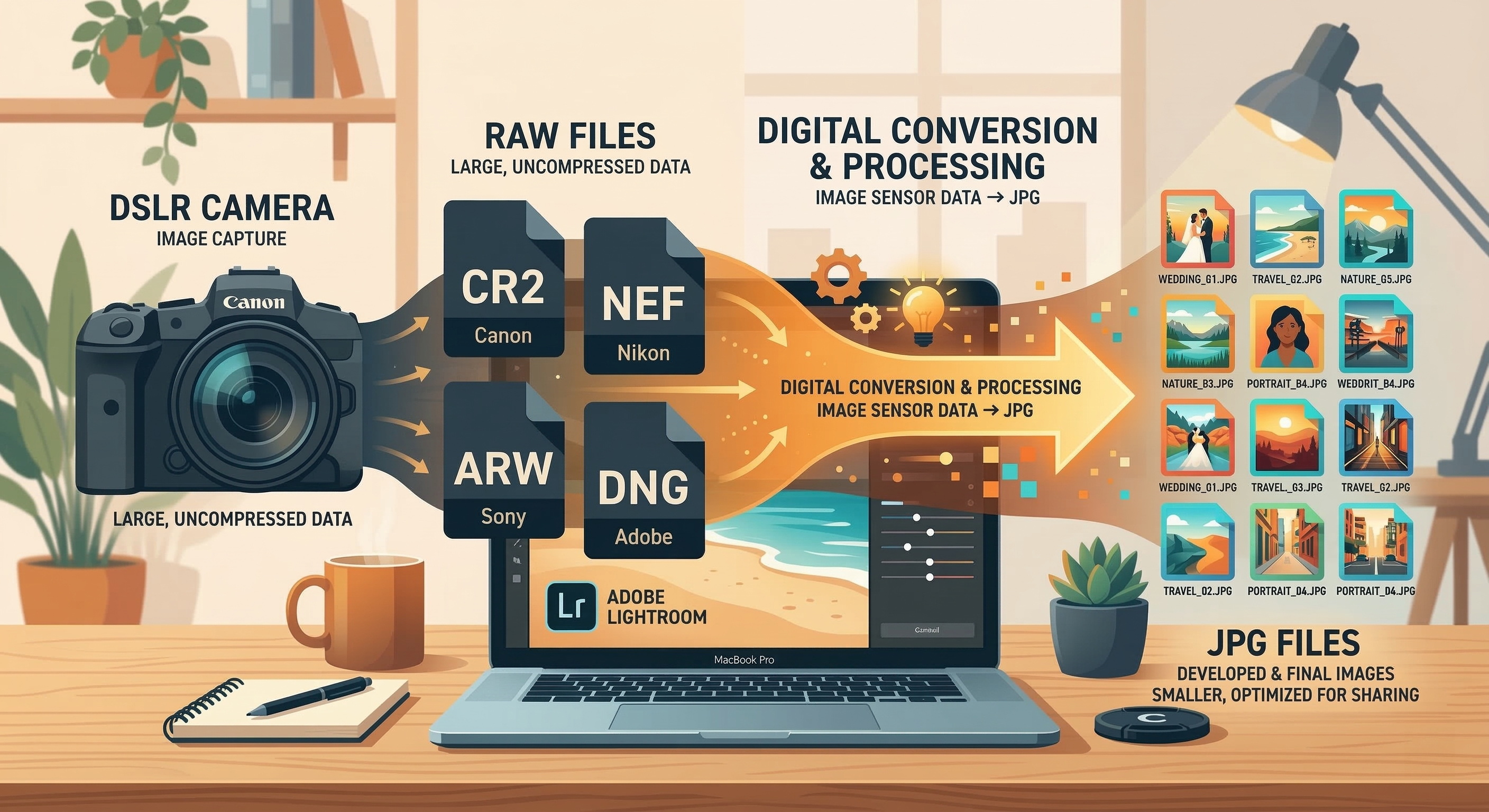
You just finished a shoot. 400 RAW files. Your client wants to see proofs by tonight. You're not about to send them 15GB of CR2 files — they probably can't even open them.
You need JPGs, and you need them fast. But opening Lightroom, importing, creating an export preset, and waiting 20 minutes just for a proof gallery? That feels like overkill.
What Are RAW Files (And Why Can't You Just Rename Them)?
RAW isn't really an image file — it's unprocessed sensor data. Think of it as the ingredients for a photo, not the finished dish. The data needs to be "developed": demosaiced, color-corrected, and compressed into something viewable.
To make things more fun, every camera brand has its own RAW format:
- Canon: CR2, CR3
- Nikon: NEF, NRW
- Sony: ARW, SRF, SR2
- Fujifilm: RAF
- Adobe: DNG
- Olympus: ORF
- Panasonic: RW2
A single 45-megapixel RAW file runs about 60MB. As a high-quality JPG? Around 8MB. That's a 7.5x reduction — and visually, for proof viewing, the difference is negligible.
Option 1: Preview (Surprisingly Decent)
macOS Preview can open most RAW formats thanks to Apple's built-in RAW engine:
- Open the RAW file in Preview.
- Go to File → Export.
- Choose JPEG from the format dropdown.
- Set your quality level and save.
Perfectly functional for one photo. For 400? You'll be there all night clicking Export.
Option 2: The sips Command in Terminal
macOS ships with a hidden gem called sips (Scriptable Image Processing System):
sips -s format jpeg *.CR2 --out ./jpgs/
This actually works for batch conversion. It's fast and free. The limitations: no quality control beyond a basic --setProperty formatOptions flag, no preview, and the color rendering can be slightly off compared to Lightroom because it uses Apple's default RAW processing pipeline.
For quick-and-dirty conversions where color accuracy isn't critical, sips is a solid option.
Option 3: Batch Convert with ShrinkPad
If you want speed, quality control, and format breadth without the command line, this is the sweet spot.
Photographer's Test
- sips (Terminal): 3 min 10 sec, no quality control.
- Lightroom export: 8+ minutes (and you had to import first).
- ShrinkPad: 1 min 45 sec, with quality slider and live preview.
Here's the workflow:
- Drop your shoot folder: ShrinkPad recognizes 20+ RAW formats — CR2, CR3, NEF, ARW, DNG, RAF, ORF, RW2, PEF, and more.
- Choose output format: JPG for proofs, or WebP/PNG if you need those instead.
- Adjust quality: Use the slider to balance quality vs. file size. The live preview shows you exactly what you'll get.
- Convert: Multi-threaded processing across your Apple Silicon cores. 400 files, under 2 minutes.
ShrinkPad uses Apple's native RAW engine (the same one Preview uses) but adds the quality control and batch processing that the built-in tools lack.

Stop uploading your files to the cloud.
Compress images and videos locally on your Mac. Fast, private, and no internet required.
Pro Tip: The RAW + JPG Proof Workflow
Here's a workflow that professional photographers love:
- Shoot RAW (always — for maximum editing flexibility).
- Use ShrinkPad to create JPG proofs the same night. Send the proof gallery to your client.
- Keep your RAWs for final editing in Lightroom or Capture One.
This way, you're not waiting for Lightroom to import and export just to show someone what you shot. The EXIF metadata (camera, lens, settings, GPS) carries over to the JPGs, so everything stays organized and searchable.
RAW Is for Editing. JPG Is for Sharing.
The conversion step shouldn't be the bottleneck in your workflow. Whether you're sending proofs, building a portfolio, or just backing up in a universally readable format — batch conversion should take minutes, not hours.
Already have JPGs that are too large? Check out How to Batch Compress Images on Mac.